


Instructure releases a product update - called a Sprint - approximately every three weeks. The following are the most recent product updates. Select the date links below for detailed release notes.
July 19th Canvas LMS Deploy Detail Notes
Redesigned Files: Cleaner, more intuitive interface - All Users
Dyslexia Friendly Font: Improves readability for users with Dyslexia - All Users
New Course Analytics: Simplifies the analytics experience - All Users
New Feature: Portfolios: New intuitive design with flexible tools - All Users
Discussion Checkpoints: Discussions with multiple submission points - All Users
See: https://community.canvaslms.com/t5/The-Product-Blog/Wrapping-Up-Discussions-Redesign-Checkpoints-Come-to-Group-Work/ba-p/647431
August 16th Canvas LMS Deploy Detail Notes
Updated Smart Search: More intuitive & visually appealing experience - All Users
October 18th Canvas LMS Deploy Detail Notes
Differentiation Tags: Send messages to specific tag groups - Instructors
(Optional feature - Contact ITAS for more information.)
Learn more about Instructure’s AI roadmap.
Canvas Emerging AI Marketplace
The Emerging AI Marketplace aims to connect educators and administrators to new, cutting-edge artificial intelligence products and services that work seamlessly within Canvas. All partners have pledged to adhere to Instructure’s approach to AI.
We’re pleased to announce that TidyUp is now available in our Canvas instance! This tool helps reduce course clutter by identifying and removing unused, duplicate, outdated, unpublished, or unlinked content within your course. In addition to streamlining course organization, using TidyUp can also improve your ALLY accessibility scores. You can access TidyUp directly from your course’s main navigation menu.
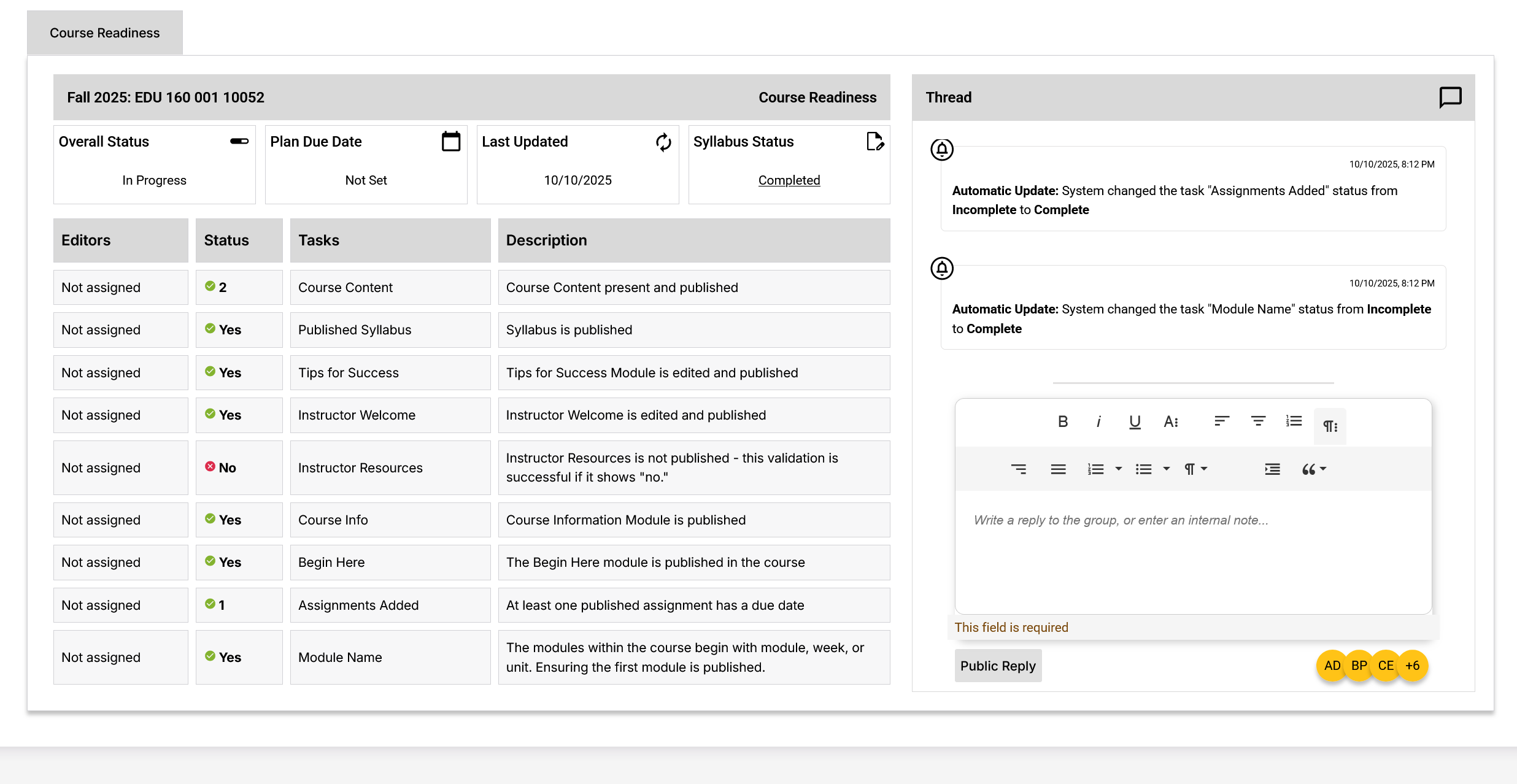
We’re excited to announce Simple Prep, a new feature within the Simple product suite that serves as a centralized course readiness tool for reviewing and supporting course builds in Canvas. This tool will eventually replace the traditional 7-Day Check process. Once implemented across the institution, a Course Readiness link will appear in your course navigation menu, providing details on approximately 11 readiness criteria to review before launch. Keep an eye out for upcoming ITAS Open Labs in December and January to learn more about this powerful new feature.
We’re pleased to share that the synchronization issue between Canvas and Simple Syllabus has been resolved. This fix addresses the previous problem where some content appeared out of sequence when using the Simple Syllabus Sync feature. If you continue to experience any irregularities, please contact ITAS for further assistance.

Beginning Tips
Emoji Generator
If you like adding emojis to your Canvas pages then you may want to check out the new Gemini Emoji Generator. Free and easy!Summarize Weekly Submissions
One strategy I find effective is providing students with a Monday wrap-up that summarizes the previous week’s discussions before moving into the next module. This can be easily accomplished using the AI Discussion Summarizer tool in Canvas. Alternatively, you can expand all discussion threads, copy the content, and paste it into a large language model (LLM) to generate a concise overview. I also prompt the LLM to highlight contributions by students’ first names. While I always proofread and edit for accuracy, this approach greatly streamlines the process of creating weekly summaries—especially when managing numerous threaded discussion posts.
Intermediate Tips
Discussion Checkpoints
Discussion Checkpoints are now active in our Canvas instance. This tool allows faculty to create discussions with multiple deadlines and corresponding point values. For example, instructors can set an initial post due on Friday for a certain number of points and a reply to a peer due on Sunday for additional points. This feature is designed to encourage earlier engagement and reduce the tendency for students to post all responses late on Sunday night, ensuring more meaningful interaction and dialogue throughout the week.Hide Grades Until You Are Ready
One useful practice I’ve found is to hide the assignment grade column from student view until grading for all submissions is complete. Often, after grading the first few students, I realize I could provide more detailed feedback or additional context. By keeping grades hidden, I have the flexibility to revisit and refine feedback or adjust scores before releasing them to the entire class, ensuring consistency and clarity in the grading process.Check your Course Links
A helpful tip is to regularly check the links in your course, as they can become outdated more quickly than expected. To use the link validator, open your course, select Settings, and choose Validate Links in Content from the right-hand menu. This tool scans your course for broken or invalid links. Keep in mind that it may occasionally produce false positives or false negatives, so it’s a good idea to double-check any flagged items before making changes.
Advanced Tips
Make a Digital Escape Room in Canvas
Instructors can design interactive escape room activities using Canvas New Quizzes branching, where students must answer correctly to advance to the next question. This approach can be made engaging by embedding images, GIFs, riddles, or hidden clues within each prompt. Adding time limits to questions introduces an element of challenge and excitement, enhancing motivation and focus while creating a game-like learning experience. When students work in teams, these time constraints also promote collaboration and strategic problem-solving.To Do Lists
Students often rely heavily on the “To Do” list that appears on their Canvas dashboard. However, this list only includes graded assignments that require a submission, meaning items like “read this book” or “attend office hours” won’t appear there. A helpful workaround is to create an assignment that prompts students to submit a short note or reflection—such as a brief summary of what they learned during a tutoring center visit. This ensures the task appears on their To Do list and helps track participation. Also, remember to add due dates to all assignments, quizzes, and discussions so they display properly in the student To Do list. Remember that Due Dates and Availability Dates are different and have different functions.

Canvas Queen Lauren Burlison Janoska offers many other great strategies for using Canvas. Subscribe to her YouTube Channel.

Dr. Sean Nufer also offers lots of excellent Canvas tips and tricks. You can find his resources at How To Canvas.

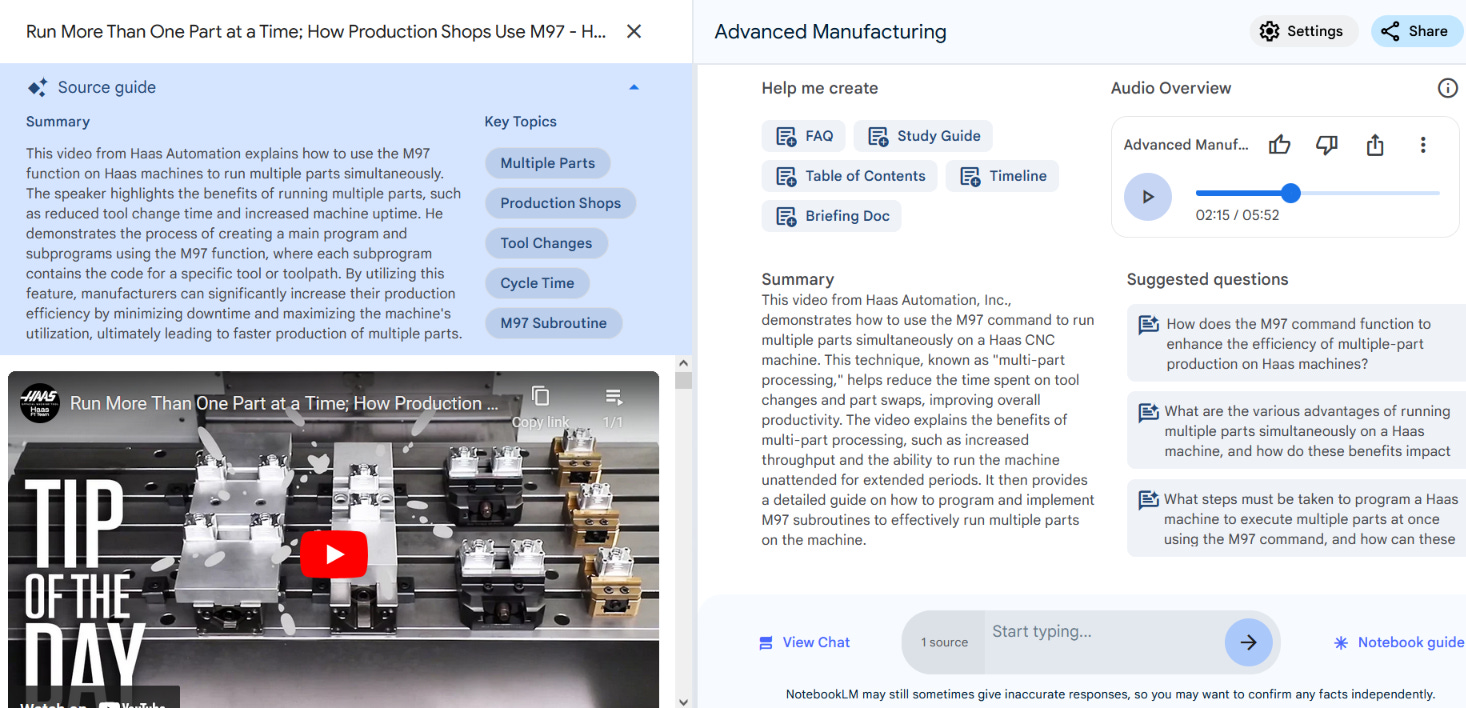
Several faculty in General Education are now employing Google’s NotebookLM in conjunction with their syllabus and other course content. You can use it to summarize a syllabus and then post the results to your course. I have provided 10 ideas for integrating NotebookLM into your Canvas course.
Faculty can also connect NotebookLM to Canvas discussion boards, allowing students to share relevant research and notes from their notebooks in discussions. This promotes richer, more informed online dialogue as students can pull insights directly from their Google notebooks into Canvas.
Five Simple Steps:
Create a shared notebook that allows students to organize research and notes on discussion topics.
In Canvas, go to Discussions, and create a new discussion thread around a specific theme, question, or topic.
Provide instructions to students on how to use NotebookLM to find, organize, and link relevant research or notes in their discussion posts.
Encourage students to use the NotebookLM shareable link to post findings directly in the discussion forum.
Monitor the discussion and encourage students to engage with each other’s NotebookLM contributions for a richer dialogue.
Pro Tip: You can find some starter questions in the “Notebook Guide” that appears after you upload your first sources.
Share Your Ideas!
If you have ideas for using Canvas that you would like to share, email us at teachingandlearning@wsutech.edu